
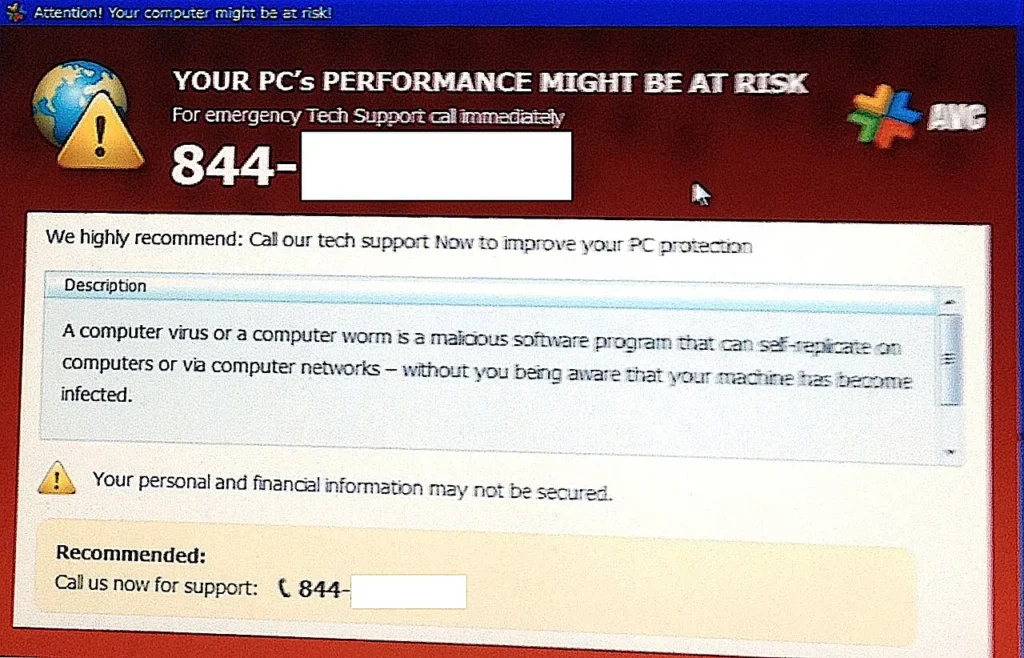

Learning how to remove malware from Windows properly — not just running one quick scan and hoping for the best — is the real difference between a genuinely clean PC and one that only looks clean while still quietly hosting a rootkit or a persistence mechanism underneath the surface. This guide walks through the real, official Microsoft-documented removal process step by step, when a regular scan genuinely isn’t enough, and when it’s time to stop trying to save the install entirely and start over clean.
Table of Contents
Step 1: Start With a Full Microsoft Defender Scan
Why a Full Scan, Not a Quick Scan
Open the Windows Security app, go to Virus & threat protection, and run a full scan rather than the default quick scan. A quick scan only checks locations malware commonly hides in; a full scan checks every file on the drive, which matters if you’re specifically responding to a suspected infection rather than doing routine maintenance. This is exactly how you remove malware from Windows without causing further damage.
When to Escalate to Microsoft Defender Offline
If a regular scan keeps finding the same threat repeatedly, or finds nothing despite clear symptoms, Microsoft’s own documentation describes exactly why: Microsoft Defender Offline boots and runs a scan from a trusted environment, outside the normal Windows kernel — specifically built to catch malware and rootkits that infect or overwrite the Master Boot Record and can otherwise hide from or interfere with a scanner running inside a live, possibly-compromised Windows session.
The scan takes about 15 minutes: your PC restarts, scans outside the OS, then restarts back into Windows. Access it via Windows Security → Virus & threat protection → Scan options → Microsoft Defender Offline scan → Scan now. If BitLocker is enabled, suspend it first or you’ll be prompted for your recovery key. (Microsoft Learn) Every step here exists because it directly helps you remove malware from Windows more reliably.
Step 2: Boot Into Safe Mode With Networking
How to Enter It
Start → Power → hold Shift and click Restart → Troubleshoot → Advanced options → Startup Settings → Restart → press 5 or F5 for “Safe Mode with Networking.” One practical catch: Safe Mode with Networking does not reliably work over Wi-Fi on many systems, since Windows treats Wi-Fi as unreliable in this boot mode — use a wired Ethernet connection if you need internet access for downloading a scanner. Skipping this step is one of the most common mistakes people make when they remove malware from Windows.
Why It Actually Helps
In Safe Mode, Windows loads only core drivers and services — no third-party startup programs, no non-essential services. Most malware persistence mechanisms (auto-run entries, third-party services, DLLs injected during normal boot) simply don’t load, which is exactly why on-demand scanners are far more effective at both detecting and deleting the payload while in this mode. This detail matters because it is part of what it actually takes to remove malware from Windows completely.
Step 3: Run a Second-Opinion Scanner
Running a dedicated on-demand scanner like Malwarebytes alongside your primary antivirus is a real, standard, safe practice — not marketing spin. Malwarebytes’ own site explicitly positions its free, on-demand version as a secondary cleanup tool that complements rather than replaces a primary antivirus, describing it as “compatible with Windows Defender and most other antivirus programs.” (Malwarebytes) This is different from running two real-time antiviruses simultaneously (which does cause conflicts, covered in our antivirus uninstall guide) — an on-demand scanner only activates when you run it. This is exactly how you remove malware from Windows without causing further damage.
System Restore vs. a Clean Reinstall: Which Actually Works
What System Restore Actually Does
System Restore is a troubleshooting feature for system files, drivers, and registry state — it is not a verified malware-removal tool, and it doesn’t touch personal files. Malware already embedded in user-profile locations, scheduled tasks, services, or browser extensions frequently survives a restore untouched. A restore point created after the infection began is also worthless, since the malware is baked into that snapshot too. Every step here exists because it directly helps you remove malware from Windows more reliably.
Why a Clean Reinstall Is the Only Guaranteed Fix
Security publications converge on the same honest conclusion: a full reset using “Remove everything” plus a clean data wipe, or a fresh install from official media, is the only method with a reasonably guaranteed outcome. System Restore is worth trying first only when you have a confirmed clean, pre-infection restore point — otherwise, don’t rely on it as your real fix. (ESET; Ask Leo) Skipping this step is one of the most common mistakes people make when they remove malware from Windows.
Common Mistakes That Let Malware Come Back
Restoring From an Infected Backup
A surprisingly common mistake: after a clean reinstall, restoring personal files from a backup taken after the infection started — which can reintroduce the exact malicious files you just removed. If you don’t know exactly when symptoms started, treat any backup from the suspected infection window with suspicion, and scan individual files with your on-demand scanner before restoring them rather than restoring the whole backup at once. This detail matters because it is part of what it actually takes to remove malware from Windows completely.
Trusting a Single Clean Scan Result
One clean scan result isn’t proof the system is fully clear, especially if the infection included anything specifically designed to disable or blind security software before it could ever raise the alarm — a real, documented technique used by more than one major malware family.
TrickBot, for example, has been confirmed to add methods specifically targeting Windows Defender, using registry edits and PowerShell commands to turn off real-time and behavior monitoring. (BleepingComputer) Run a second scan with a different engine (the on-demand scanner from Step 3) before declaring the machine clean, precisely because a scanner that’s been tampered with can report a false all-clear. This is exactly how you remove malware from Windows without causing further damage.
Ignoring the Browser Layer
A clean, freshly-scanned operating system sitting underneath a still-infected browser profile is, in every practical sense, still an infected machine overall. Malicious browser extensions, hijacked search settings, and saved-session cookies can all survive an OS-level cleanup if you don’t separately review your browser’s extensions and reset its settings. This is worth checking even after a full reinstall if you plan to sign back into the same browser profile/sync account. Every step here exists because it directly helps you remove malware from Windows more reliably.
A Real, Recent Example of Why This Matters
In May 2025, Microsoft’s Digital Crimes Unit, the DOJ, FBI, and Europol conducted a coordinated takedown of Lumma Stealer, a widely-used “malware-as-a-service” infostealer. Microsoft’s own report identified roughly 394,000 infected Windows devices in a two-month window before the takedown, with about 2,300 malicious domains seized. Worth knowing honestly: Lumma reportedly rebounded within days of the takedown — a real reminder that this category of malware is persistent and well-resourced, not a one-time problem. (Microsoft, May 2025; CNBC) Skipping this step is one of the most common mistakes people make when they remove malware from Windows.
Identifying What You’re Actually Dealing With
Is It Ransomware Specifically?
If your files are encrypted or you’re seeing a ransom demand rather than the general symptoms covered in this guide, stop and go to our dedicated ransomware removal guide instead — the correct first move (isolating the device from the network before doing anything else) is different from general malware cleanup, and doing the steps in this article first could reduce your options. This detail matters because it is part of what it actually takes to remove malware from Windows completely.
Signs You’re Dealing With an Infostealer
Infostealer malware like Lumma specifically targets saved browser passwords, autofill data, session cookies, and cryptocurrency wallet files, then quietly exfiltrates all of it without necessarily causing any obvious, disruptive symptoms like crashes, slowdowns, or pop-ups — which is precisely why this category can go completely unnoticed for far longer than more visibly disruptive malware types typically do. If you have any reason to suspect an infostealer specifically (unexplained account logins, password reset emails you didn’t request), treat every saved password as compromised, not just the ones tied to obviously-affected accounts. This is exactly how you remove malware from Windows without causing further damage.
Adware and PUPs: Annoying but Different
Not everything that triggers a scan result is equally dangerous, and understanding the difference genuinely changes how urgently you need to respond. Potentially Unwanted Programs (PUPs) and adware — browser toolbars, pop-up generators, bundled software from a free download — are a real, distinct, generally lower-severity category from credential-stealing or ransomware-deploying malware.
Both deserve removal, but the urgency and the post-removal precautions (like assuming your passwords are compromised) differ meaningfully, and most on-demand scanners will label the detection type, which is worth reading rather than skipping past. Every step here exists because it directly helps you remove malware from Windows more reliably.
After Removal: What to Actually Do Next
- Change your passwords from a different, known-clean device — infostealers like Lumma specifically harvest saved credentials, so a password change from the still-infected machine may just hand the new password to the malware too.
- Enable two-factor authentication on your most important accounts; see our two-factor authentication guide for which method actually resists credential theft.
- Switch to a password manager going forward so you’re never manually typing credentials a keylogger or infostealer could capture in the same way; see our password manager comparison.
- Check your browser extensions for anything unrecognized, since malicious or hijacked extensions are a common reinfection vector.
- Keep Windows and all software updated going forward — many malware families specifically exploit known, already-patched vulnerabilities on systems that fell behind.
Preventing Reinfection Long-Term
Removing malware once is only half the job — the same gap that let it in the first time will let the next infection in too, unless you close it. Keep Windows Update genuinely current rather than deferring updates for weeks, since many malware families specifically target known, already-patched vulnerabilities on systems that fell behind; see our guide to setting up a new PC securely for the correct order of operations.
Enable Controlled Folder Access in Windows Security, which specifically blocks unauthorized programs from modifying protected folders — a real, built-in ransomware-focused defense most users never turn on. And be honest with yourself about download sources: pirated software, cracked installers, and “free” versions of paid tools remain one of the most common real-world infection vectors, regardless of how good your antivirus is at cleanup after the fact. Skipping this step is one of the most common mistakes people make when they remove malware from Windows.
Remove Malware from Windows: Frequently Asked Questions
Is a regular antivirus scan enough to remove malware from Windows?
Often yes for common malware, but not always — rootkits and boot-level infections can hide from or interfere with a scanner running inside a live Windows session. If a regular scan keeps missing something or finds the same threat repeatedly, escalate to Microsoft Defender Offline. This detail matters because it is part of what it actually takes to remove malware from Windows completely.
Should I run two antivirus programs to remove malware?
Not two real-time antivirus programs — that causes real conflicts. Running a free, on-demand scanner like Malwarebytes alongside your primary real-time antivirus is different and is a standard, vendor-endorsed practice. This is exactly how you remove malware from Windows without causing further damage.
Does System Restore remove malware from Windows?
Not reliably. System Restore addresses system files and settings, not a verified clean state, and malware in user-profile locations or browser extensions frequently survives it. A restore point created after infection is also worthless. Every step here exists because it directly helps you remove malware from Windows more reliably.
When should I just reinstall Windows instead of trying to clean it?
When scans keep finding the same infection, when you suspect a rootkit or boot-level infection, or when you simply want a guaranteed clean result — a full reset or clean reinstall is the only method with a reliably guaranteed outcome. Skipping this step is one of the most common mistakes people make when they remove malware from Windows.
What should I do immediately after removing malware from Windows?
Change your passwords from a separate, clean device, enable two-factor authentication on important accounts, and check your browser extensions for anything unrecognized — infostealer malware specifically targets saved credentials. This detail matters because it is part of what it actually takes to remove malware from Windows completely.
How do I know if it’s ransomware instead of regular malware?
If your files are encrypted or you see a ransom demand, stop the general removal process and follow ransomware-specific guidance instead — isolating the device from the network before doing anything else is the correct first move, and it differs from general malware cleanup.
Can malware survive a factory reset?
Malware in the operating system and user files generally does not survive a proper “Remove everything” reset with a clean data wipe, but restoring files from a backup taken after infection can reintroduce it — scan individual files before restoring them.
Why does my antivirus say I’m clean but I still see symptoms?
Some malware specifically targets and disables antivirus software or blinds its detection, a real documented technique used by families like TrickBot. Run a second scan with a different, on-demand scanner before trusting a single clean result.
One last honest note: no single removal method is perfect for every situation, and the right combination of these steps genuinely depends on how the infection got in, what it touched, and how long it had access before you noticed — which is exactly why starting with a full scan and escalating methodically, rather than jumping straight to a full reinstall out of panic, is usually the more practical path for most home users.