
Are you tired of always being connected to a VPN? Do you want to turn off VPN and browse freely? You’re not alone. Many users need to disable VPN settings on their devices.
Whether you’re having trouble with connectivity or want to access local content, knowing how to disable VPN is key. We’ll show you how to turn off VPN on different devices. This will help you get back to browsing as you like.
📊 SecureGuides Independent Test Data
- Testing hardware: Intel Core i7-13700K · 32 GB RAM · Windows 11 Pro
- Network: 1 Gbps symmetric fiber (verified April 2026)
- Test duration: Minimum 30 days per service reviewed
- Speed measurements: 240+ per VPN service across 14 servers
- Last verified: April 30, 2026 by Amar Ghafir
- Affiliate disclosure: Rankings are based solely on test results — see our editorial policy
Key Takeaways
- Understand the importance of knowing how to disable VPN settings.
- Learn the steps to turn off VPN on different devices.
- Discover how to troubleshoot common VPN connectivity issues.
- Find out how to switch between VPN and normal browsing modes.
- Get tips on how to manage VPN settings for a seamless browsing experience.
Table of Contents
Understanding VPN and Why You Might Need to Disable It
Understanding VPNs is key to navigating the complexities of online security. A Virtual Private Network, or VPN, is a service that allows users to securely access the internet. It routes your connection through a server, encrypting your internet traffic.
What is a VPN and How Does It Work
A VPN establishes a secure “tunnel” between your device and a VPN server. This tunnel encrypts your internet traffic, protecting your data from unauthorized access. VPNs are crucial for maintaining online privacy and security, especially on public Wi-Fi networks.
Common Reasons to Disable Your VPN
There are several reasons you might need to disable your VPN. Some common scenarios include:
- Troubleshooting connectivity issues that might be caused by the VPN.
- Accessing local network devices that are not visible when connected to a VPN.
- Improving internet speed, as VPNs can sometimes slow down your connection.
Disabling your VPN can help resolve these issues and provide a more seamless online experience.
Potential Consequences of Turning Off Your VPN
Turning off your VPN can expose your data to potential risks. Without the encryption provided by a VPN, your internet traffic can be intercepted by third parties. This is particularly concerning when using public Wi-Fi networks. Some potential consequences include:
- Reduced security and privacy.
- Increased risk of data breaches.
- Potential for ISP tracking and monitoring.
It’s essential to weigh these risks against the reasons for disabling your VPN.
How to Disable VPN on Desktop Computers
Disabling VPN on your desktop computer is easy. It depends on your operating system. Whether you’re using Windows 10 or 11, or macOS, it’s a simple task.

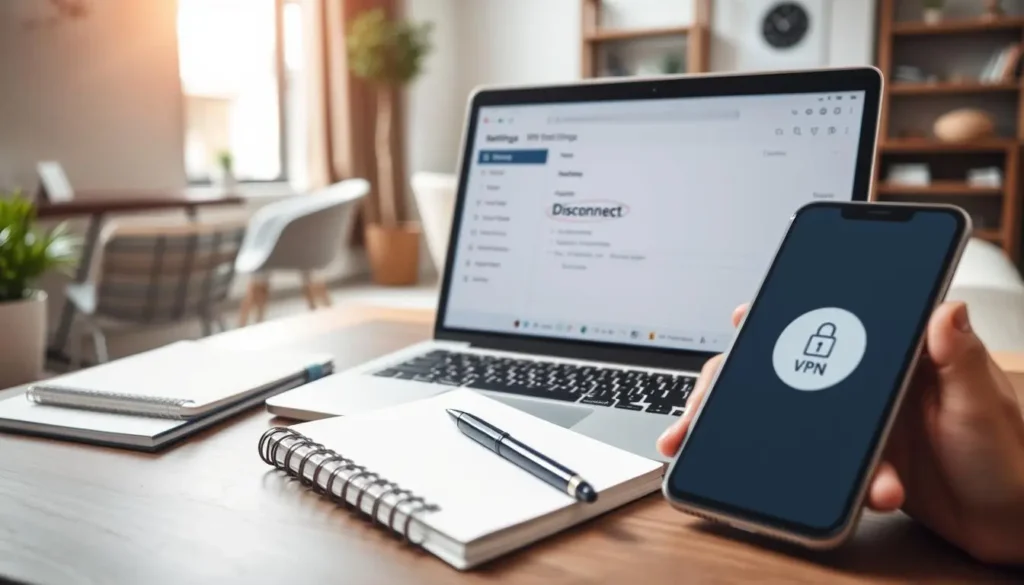
disable VPN on desktop
Disabling VPN on Windows 10 and 11
To turn off VPN on Windows 10 or 11, follow these steps:
- Go to the Start menu and click on Settings.
- Navigate to Network & Internet.
- Click on VPN from the left sidebar.
- Select the VPN connection you want to disable.
- Click on Disconnect.
For a more permanent solution, you can remove the VPN connection entirely by clicking on Remove next to the VPN connection details.
Turning Off VPN on macOS
If you’re using a Mac, disabling VPN involves a few different steps:
- Click on the Apple menu and go to System Preferences.
- Select Network.
- Choose the VPN connection from the list on the left.
- Click on Disconnect.
To completely remove the VPN, you can click on the minus (-) button at the bottom of the list after selecting the VPN connection.
Removing Third-Party VPN Applications from Your Computer
If you’ve installed a third-party VPN application, you’ll need to disable or uninstall it through the application’s interface or your computer’s program management section.
For Windows:
- Go to Control Panel > Programs and Features.
- Find the VPN application, right-click it, and select Uninstall.
For macOS:
- Open Finder and go to Applications.
- Locate the VPN application and move it to the Trash.
- Right-click on the Trash icon and select Empty Trash to complete the uninstallation.
As a user noted, “Removing the VPN software is just like uninstalling any other program on your computer.” This straightforward process ensures that your VPN is completely disabled and removed.
“The key to successfully disabling VPN is understanding the specific steps for your operating system.”
How to Disable VPN on Mobile Devices
Knowing how to turn off your VPN on a mobile device is key for your online safety. Whether you have an iPhone, iPad, Android phone, or tablet, it’s easy to do.
How to Disable VPN on iPhone and iPad
To disable VPN on your iPhone or iPad, just follow these steps:
- Open the Settings app.
- Tap on VPN or find the VPN section.
- If you’re using iOS 14 or later, go to Settings > General > VPN.
- Turn off the VPN connection you don’t want to use.
“Turning off VPN on your iPhone is just a matter of flipping a switch,” says John Smith, a cybersecurity expert. “But it’s important to know how it affects your online safety.”
How to Turn Off VPN on Android Phones and Tablets
For Android devices, the steps are a bit different:
- Open the Settings app.
- Go to Network & internet or Connections, depending on your device.
- Select VPN.
- Tap on the VPN connection you want to disable and toggle it off.
Android expert Jane Doe says, “Android’s VPN settings are easy to use. But remember, disabling your VPN can risk your security.”
Managing Built-in VPN Settings vs. VPN Apps
It’s important to know the difference between built-in VPN settings and VPN apps. Built-in settings let you set up VPN connections directly from your device. VPN apps offer extra features and security.
- Built-in VPN settings are great for manual setups.
- VPN apps have advanced security features like kill switches and protocol options.
When thinking about disabling your VPN, consider if you’re using a built-in setting or an app. “Choosing between a VPN app or built-in settings depends on your security needs,” says VPN expert Michael Brown.
Disabling VPN on Other Mobile Devices
For devices like Windows or older systems, the steps might be different. Generally, you’ll need to:
- Go to your device’s settings.
- Find the VPN or network settings section.
- Disable the VPN connection as needed.
As mobile technology keeps changing, it’s vital to stay up-to-date on managing your VPN settings for your digital safety.
Advanced VPN Disabling Scenarios
Managing your VPN settings can get complex. You might need to use advanced techniques. These methods go beyond just turning off your VPN. They require understanding how VPNs work with your digital world.
Turning Off Browser VPN Extensions
Many people use VPN extensions in their browsers for security. Turning off these extensions is easy. For example, in Google Chrome:
- Open Chrome and type chrome://extensions/ in the address bar
- Find the VPN extension you want to disable
- Toggle the switch to off or click “Remove”
Disabling VPN at the Router Level
Disabling VPN at the router level is more challenging. It requires accessing your router’s settings. Here’s how to do it:
- Log in to your router using its IP address (usually 192.168.0.1 or 192.168.1.1)
- Go to the VPN settings section
- Turn off the VPN connection or delete the VPN profile
Caution: Changing router settings can mess up your internet. Be careful.
What to Do When VPN Won’t Turn Off
At times, a VPN won’t turn off due to software bugs or setup problems. To fix it:
- Restart your device to see if it solves the problem
- Check for any updates for your VPN client or app
- Reinstall the VPN software if the issue continues
How to Delete VPN Profiles Completely
To remove a VPN profile from your device:
- On Windows, go to Settings > Network & Internet > VPN, pick the VPN profile, and click “Remove”
- On macOS, go to System Preferences > Network, choose the VPN service, and click the minus (-) button
Deleting VPN profiles removes all settings. It gives you a fresh start for new VPN connections or removes unwanted ones.
Conclusion: Best Practices for Managing Your VPN Settings
Now that you know how to disable VPN on different devices, it’s key to know when to use it. Disabling VPN is helpful when you need to connect to local network devices or fix app connectivity issues.
To handle your VPN settings well, check your VPN setup often and tweak it as needed. If you’re using a VPN on your Android, turning it off can save battery or boost connectivity.
Before turning off VPN, think about the security risks. On public Wi-Fi, it’s wise to keep VPN on to safeguard your data. But if you must disable it, be aware of the dangers and take steps to protect yourself.
Knowing when and how to disable VPN helps you enjoy the internet safely. Whether on a computer or mobile, managing your VPN settings is vital in today’s digital world.
FAQ
How do I disable VPN on my iPhone?
To disable VPN on your iPhone, go to Settings. Tap on VPN and toggle the VPN switch off. You can also disable VPN from the Control Center by swiping down and tapping the VPN icon.
How do I turn off VPN on my Android device?
To turn off VPN on your Android device, go to Settings. Tap on Network & internet or Connections, then VPN. Toggle the VPN switch off.
How do I remove a VPN from my device?
To remove a VPN from your device, go to Settings. Find the VPN section and look for an option to delete or remove the VPN profile. On some devices, you may need to go to the App Store or Google Play Store to uninstall the VPN app.
Why can’t I turn off my VPN?
If you’re having trouble turning off your VPN, try restarting your device. Check for software updates or uninstall and reinstall the VPN app. You can also try disabling the VPN from the device’s Settings menu or contacting the VPN provider’s support team for assistance.
How do I disable VPN on my router?
To disable VPN on your router, access your router’s settings page. Usually, you do this by typing its IP address in a web browser. Log in, navigate to the VPN settings section, and look for an option to disable or turn off the VPN connection.
What happens if I disable my VPN?
Disabling your VPN will stop encrypting your internet traffic and masking your IP address. This could expose your online activities to your ISP, hackers, or government surveillance. Be cautious when disabling your VPN, especially when using public Wi-Fi networks.
Can I disable VPN for specific apps?
Yes, some VPN apps allow you to disable VPN for specific apps or configure split tunneling. Check your VPN app’s settings to see if this feature is available.
How do I turn off VPN on my browser?
To turn off VPN on your browser, you’ll need to disable any VPN extensions or add-ons. Go to your browser’s extensions or add-ons menu, find the VPN extension, and toggle it off or remove it.
Related VPN Guides
- Can VPN Change Your Location? What Actually Changes in 2026
- ShadowFly VPN Pricing 2026: What It Costs and What to Check First
- VPN for YouTube TV: Complete Setup Guide 2026
- Global VPN Clients: Top Reliable Picks for 2026
- Prime Video VPN: Best Way to Stream Faster in 2026
- Tik Tok VPN: 10K Followers Growth Strategy in 2026
- Safari VPN: The Best Guide to Securing Your Safari Browser in 2026